


▪ 10-inch Touch-Screen Indoor Station

what is Wireless doorbell ?
Wireless doorbell is a doorbell system developed using wireless technology.
Wireless doorbells typically consist of doorbell transmitters on outdoor doors and indoor units, which can be placed anywhere in the room. The characteristic of wireless doorbells is that they do not require wiring and are easy to install and flexible
Wifi wireless
Long distance transmission of signals, unconstrained
Camera
Supports to 2 cameras and 2 doorstep cameras
IP65
|
Working Temperature -10°C~55°C |
APP
Support tuya APP,Support remote intercom and unlock
Safety Instruction
Notice
•When installing this product, all electrical safety regulations of the country and region must be strictly observed.
• Please do not drop the device or vibrate it vigorously, and keep the device away from places where there is magnetic interference. Avoid mounting the device where surfaces are subject to vibration or shock (ignoring this may damage the device).
• Please use the power adapter provided by the regular manufacturer.
• Do not connect multiple devices to one power adapter to avoid serious hazards such as overheating or fire caused by overloading the adapter.
• Please disconnect the power supply during wiring, disassembly and other operations, and do not operate with electricity.
• When installing the device to the wall, make sure that the device is securely fastened.
• If the device emits abnormal noise, smoke or smells, please turn off the power immediately, disconnect the power, and contact the service center.
• If the device is not working properly, please contact the store where you purchased the device or the nearest service center and do not disassemble or modify the device in any way. (The company is not responsible for problems caused by unauthorized modifications or repairs.)
• Equipment used indoors should not be installed exposed to rain or very humid places.
Product introduction
General function
1. Product application:
▪ Video intercom: support video calling, video monitoring, unlocking, video recording and call record query
▪ Security alarm: support 2 alarm inputs and 1 alarm output
▪ Support Tuya Smart APP
2. Operating system: Linux system
Specification
▪ Working voltage: DC12V
▪ Rated power: <10W
▪ Display: 10.1 inch display
▪ Touch screen: capacitive touch screen
▪ Resolution: 1280*800
▪ Working temperature: -10℃~55℃
▪ Working humidity: 10%~90%
Appearance
Indoor Monitor

Outdoor Monitor

Main Menu
General setting

【System time】Set the current system date and time of the station;
【Time Zone】Select your time zone;
【Date Format】Select the format of the date display, including: YYYY, MMDD, DDMM;
【Language selection】Support multiple languages, with Chinese and English as the standard;
【Daylight Saving Time】Set the daylight saving time system;
【NTP Service】Set NTP service;
【Advanced】Enable or disable boot wizard, screen saver, configure main extension mode.
Network setting

Figure Network settings
【Obtain IP address automatically】Automatically obtain IP function (open by default);
【IP Address】Set the IP address of the device;
【Subnet mask】Set the subnet mask of the device;
【Gateway】Set the gateway of the device;
[DNS] Domain name resolution server, which is used to resolve the domain name into an IP address, which is provided by your network operator. After setting the address, it needs to be restarted to take effect;
【Advanced】Email Service Settings
3.2.1 Mailbox settings
[SMTP server] The mail server address, which can be an IP address and a domain name (if it is a domain name, you need to confirm that the DNS is set correctly, and the domain name can be resolved correctly);
【Port】mail server port number;
【Sender】Set the email address of the sender of the email;
[Password] corresponds to the sender's email password;
【Recipient 1/2/3】When an alarm is generated, it will be sent to the set recipient by email, and 3 recipients can be set;
【Email Test】Test whether the mailbox settings are correct.
HDD Management
Configure and manage the SSD/TF card/USB in the indoor unit. The current hard disk information is displayed in the menu, including the name of the connected device, total capacity, device status, working status, etc. The access storage device can be formatted.
Note: When installing or replacing the hard disk, please power off the device first

Figure HDD
Add IP Camera

Figure Add IP camera

Figure work status
【No.】IPC serial number;
[Status] IPC connection status;
【MAC address】IPCMAC address;
【Operation】Pairing operation;
【Pairing】Long press the IPC pairing button to perform pairing operation;
【Wireless Channel】Wireless channel selection;
【Working status】IPC working status.
P2P
Click Enable Click Enable to enable the Tuya Smart APP remote access function.

Figure P2P
Play back

Figure Play back menu
|
Icon |
Description |
|
|
Export |
|
|
Calendar |
|
|
Play |
|
|
Last minute |
|
|
Next minute |
|
|
Timeline |


Table -Play back icon description
Record setting

Figure -Record setting
Set the recording parameters of the channel. On initial startup, the system is set to record continuously for 24 hours. Corresponding settings can be made in [Recording Settings].
【Channel】Select the corresponding channel number to set the channel;
【Brush】Select the brush to draw the video plan;
【Normal】In the set time period (blue area), normal recording is performed;
【Event】During the set time period (green area), record the detection alarm;
【No recording】During the set time period (white area), the corresponding channel stops recording;
【Copy to】Copy the settings of the current channel to other channels.
Record backup

Figure -Record backup
Backup the video files in the device to an external storage device. Before backing up the files, you need to install a storage device that can accommodate the stored files.
[Query] After setting the corresponding channel and the corresponding event, click query to display the video files that meet the search conditions;
[Record backup] After selecting the file, click Video backup to start the backup.
System upgrade
System upgrade

Figure -system upgrade
Where to upgrade】Select the external storage device with the upgrade file installed;
【Upgrade file】Select the corresponding upgrade file;
【Detect software version】Detect the current software version;
【Upgrade】Start the upgrade operation;
【Restore Default】Start the restore default operation.
Answer and unlock
Use the call button on the doorbell to start calling the indoor station, and the following dialog box will pop up:
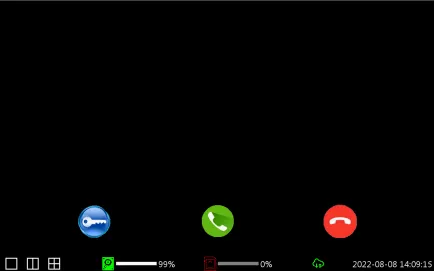
1. Click to answer the call. or click to reject the call
2.After answering the call, you will enter the in-call window, click to
Reject the call.
3. Click to unlock.
Installation instructions:
To avoid howling caused by the echo, please ensure that the distance between any two devices is greater than 10 meters when installing the device.
Note: The equipment here is not limited to indoor station, VTO, indoor extension, etc.


